
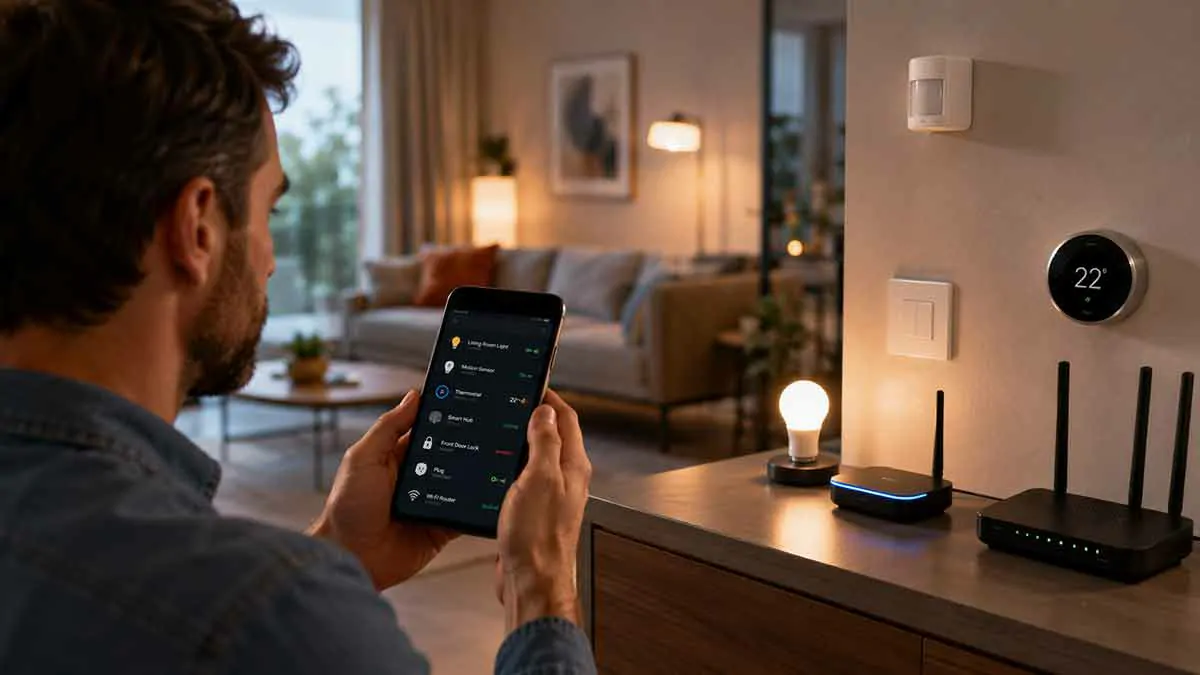
Smart home automation can make everyday life easier, but even a well-designed system can occasionally stop working as expected.
A light may fail to turn on when motion is detected. A smart lock may become unavailable. A routine may run inconsistently. A sensor may stop triggering an automation, or several devices may suddenly appear offline.
These problems can be frustrating because a smart home often involves several layers working together: the device itself, your network, a hub or controller, the smart home platform, cloud services, and the automation rules connecting everything.
The good news is that most smart home automation problems can be diagnosed systematically.
Instead of randomly restarting devices or changing multiple settings at once, it is better to identify exactly where the communication or automation chain is failing.
In this complete guide, we’ll explain how to troubleshoot common smart home automation problems, including offline devices, failed triggers, unreliable routines, network problems, hub issues, cloud dependencies, and automation conflicts.
Table of Contents
What Is Smart Home Automation Troubleshooting?
Smart home automation troubleshooting is the process of identifying and fixing problems that prevent connected devices or automation rules from working correctly.
A typical automation may involve several steps:
Sensor → Network → Hub or Platform → Automation Rule → Device → Action
A problem at any point can prevent the expected result.
For example:
Motion detected → Sensor works → Network fails → Automation never receives trigger → Light stays off
The light itself may be working perfectly.
This is why troubleshooting should start by identifying which part of the system is actually failing.
Why Smart Home Automations Fail
Common causes include:
- Device connectivity problems
- Wi-Fi issues
- Hub failures
- Weak wireless signals
- Incorrect automation conditions
- Sensor problems
- Cloud service outages
- Firmware issues
- Account or permission changes
- Conflicting automations
- Power interruptions
- Incorrect device settings
Some problems are simple configuration errors, while others require changes to your network or hardware.
Start With the Simplest Explanation
Before changing advanced settings, check the basics.
Ask:
- Is the device powered on?
- Is it connected?
- Can you control it manually?
- Is the hub online?
- Is the automation enabled?
- Is the trigger working?
- Are the conditions correct?
- Is the target device responding?
This simple sequence can eliminate many common problems quickly.
The Basic Smart Home Troubleshooting Process
A reliable troubleshooting process looks like this:
1. Reproduce the problem.
Determine exactly what is failing.
2. Test the device manually.
Check whether the device itself responds.
3. Test the trigger.
Verify that the sensor or event is being detected.
4. Check the automation.
Review triggers, conditions, and actions.
5. Check connectivity.
Look at Wi-Fi, Zigbee, Z-Wave, Thread, or other connections.
6. Check the hub or controller.
Make sure it is online and functioning.
7. Check cloud services if applicable.
Some automations depend on external services.
8. Change one thing at a time.
This makes it easier to identify the actual cause.
Check Whether the Device Works Manually
This is one of the most useful troubleshooting steps.
Suppose an automation is supposed to turn on a smart light.
First, open the smart home app and turn the light on manually.
If the Light Works Manually
The problem is probably related to:
- Trigger
- Conditions
- Automation
- Sensor
- Network communication
- Controller
If the Light Does Not Work Manually
The problem may involve:
- Power
- Device connectivity
- Hub
- Firmware
- Hardware
- Platform connection
This distinction immediately narrows the problem.
Check the Automation Trigger
Every automation begins with a trigger.
Examples include:
- Motion detected
- Door opened
- Temperature changes
- Time of day
- Device state changes
- Someone arrives home
- Someone leaves home
If the trigger never occurs, the rest of the automation will not run.
Example
Automation:
Motion detected → Hallway light turns on
If the motion sensor does not detect movement, the light automation cannot execute.
The problem may therefore be the sensor rather than the light.
Test the Trigger Independently
If possible, check whether the platform is receiving the trigger.
For a motion sensor, walk in front of it and check whether its status changes.
For a door sensor, open and close the door.
For a temperature sensor, check whether the reported temperature changes.
If the trigger does not register, troubleshoot the sensor or network before changing the automation.
Check Automation Conditions
Triggers are not the only part of an automation.
Automations often contain conditions.
For example:
Motion detected
AND
After sunset
AND
Nobody is sleeping
→ Turn on hallway light
If any required condition is false, the automation may not execute.
This is one of the most common reasons an automation appears to work sometimes but not others.
Review Every Automation Condition
Look for:
- Time restrictions
- Presence conditions
- Device states
- Temperature thresholds
- Security modes
- Day-of-week restrictions
- Home or away status
- Multiple conditions using AND logic
A single incorrect condition can prevent the entire automation from running.
Check AND vs OR Logic
Automation logic can create unexpected behavior.
AND Logic
All conditions must be true.
Motion detected AND after sunset
OR Logic
At least one condition must be true.
Motion detected OR door opened
If an automation is behaving incorrectly, check whether the logic matches your intended behavior.
Check Automation Actions
Even when the trigger and conditions work, the action may fail.
For example:
Motion detected → Turn on light
The motion sensor may trigger correctly, but the light may not respond.
Check whether:
- The correct device is selected
- The correct room is selected
- The device is online
- The desired state is correct
- The action is supported
Check Whether the Automation Is Enabled
This sounds obvious, but it is easy to overlook.
Automations can become disabled because of:
- Manual changes
- Platform updates
- Troubleshooting
- Imported configurations
- Account changes
- User errors
Verify that the automation is actually enabled.
Check Device Status
An automation can fail because one of the devices is offline.
Look at the smart home app and check whether the relevant devices show:
- Online
- Offline
- Unavailable
- Unknown
- Not responding
If a device is offline, fix connectivity before changing the automation itself.
Restart the Affected Device
A simple restart can resolve temporary problems.
Depending on the device, this may involve:
- Power cycling
- Restarting through the app
- Removing and restoring power
- Restarting a hub
Avoid factory resetting the device unless necessary.
A factory reset can erase configuration and require the device to be set up again.
Restart the Hub or Controller
If several devices are experiencing problems at the same time, the hub or controller may be the source.
Restarting it can resolve temporary:
- Communication errors
- Memory issues
- Network problems
- Integration failures
- Automation processing errors
If only one device is affected, restarting the entire system may not be necessary.
Check Your Internet Connection
Cloud-dependent smart home systems may stop functioning properly when internet access is unavailable.
Test:
- Websites on your phone or computer
- Router status
- Modem or fiber connection
- Cloud-based smart home services
However, remember that not every smart home automation requires the internet.
A locally controlled automation may continue working during an internet outage.
Check Your Local Network
A functioning internet connection does not necessarily mean your local network is healthy.
Problems can include:
- Router instability
- Wi-Fi interference
- Network congestion
- DHCP problems
- DNS issues
- VLAN configuration
- Firewall rules
- Multicast discovery problems
If multiple devices are affected, investigate the network rather than resetting individual devices repeatedly.
Check the Wi-Fi Signal
Weak Wi-Fi can cause intermittent smart home problems.
Symptoms include:
- Devices frequently going offline
- Slow responses
- Delayed automations
- Random disconnections
- Devices working only sometimes
Move the device closer to the access point temporarily.
If reliability improves, signal strength or network coverage may be the problem.
Check 2.4 GHz Requirements
Many smart home devices use 2.4 GHz Wi-Fi.
Some devices do not support 5 GHz.
If a device cannot connect, verify the manufacturer’s wireless requirements.
This is particularly important during initial setup.
Check Wi-Fi Network Names and Passwords
If you recently changed:
- Wi-Fi name
- Wi-Fi password
- Router
- Security settings
your smart devices may need to be reconfigured.
A device can appear to be malfunctioning when it is simply trying to connect to an old network.
Check Router Security Settings
Changes to router security can affect smart home devices.
For example, some older devices may not support newer security configurations.
If several older devices stopped working after a router upgrade, check whether the wireless security mode changed.
Do not weaken your network security permanently just to support an obsolete device. Consider replacing devices that cannot meet reasonable security requirements.
Check Network Segmentation
If you use an IoT network or VLAN, verify that your smart home devices can communicate with the controller and required services.
Network isolation can improve security but may interfere with:
- Device discovery
- Local control
- Casting
- Matter commissioning
- Automation communication
Make sure your firewall rules allow only the communication your system actually requires.
Check the Smart Home Hub
If your system uses a hub, inspect its status.
Check:
- Power
- Network connection
- Firmware
- Device connections
- Automation engine
- Error logs
- Storage or resource usage
If multiple devices using the same protocol fail simultaneously, the hub is an important suspect.
Check the Correct Protocol
Different devices may use different technologies.
Your system could contain:
- Wi-Fi devices
- Zigbee devices
- Z-Wave devices
- Thread devices
- Matter devices
- Bluetooth devices
If one protocol stops working while others continue normally, focus your troubleshooting on the relevant controller or network.
Check Zigbee Network Problems
Zigbee devices can experience problems caused by:
- Weak mesh coverage
- Interference
- Coordinator issues
- Device routing problems
- Incorrect placement
Powered Zigbee devices can often act as routers, helping expand the mesh network.
If a sensor becomes unreliable after moving it farther from the hub, network coverage may be the problem.
Check Z-Wave Network Problems
Z-Wave devices also depend on network topology and signal quality.
Potential problems include:
- Weak signal
- Poor device placement
- Controller issues
- Incorrect regional frequency
- Routing problems
If a Z-Wave device becomes unreliable after moving it, investigate the network route and signal quality.
Check Thread Network Problems
Thread networks depend on Thread-capable devices and infrastructure.
If Thread devices are not responding, check:
- Thread Border Router status
- Thread network status
- Device connectivity
- Controller compatibility
- Firmware
If your system uses Matter over Thread, troubleshoot both the Matter layer and the Thread network.
Check Matter Connectivity
Matter problems can involve several components.
Check:
- Matter controller
- Commissioning status
- Thread Border Router if using Thread
- Wi-Fi or Ethernet network
- Device firmware
- Platform support
A Matter device may be connected to the network but still unavailable to the smart home controller.
Check Device Firmware
Firmware updates can fix:
- Bugs
- Connectivity problems
- Security issues
- Compatibility problems
- Automation errors
However, firmware updates can occasionally introduce new behavior.
Before updating many devices at once, consider testing one device first if the update is optional.
Check Hub Firmware
The hub or controller also needs to remain updated.
An outdated controller can cause compatibility issues with newer devices.
Check for updates to:
- Hub software
- Controller firmware
- Mobile app
- Device firmware
Update the Smart Home App
If the app is behaving strangely, make sure it is current.
Problems such as:
- Missing devices
- Incorrect status
- Failed commands
- Configuration errors
can sometimes be caused by outdated software.
Check Account Permissions
Smart home systems may use multiple users and permission levels.
A device or automation may become unavailable because:
- User access changed
- Account ownership changed
- A device was removed
- An integration was disconnected
- Authentication expired
If something suddenly disappeared from the app, check account and integration settings.
Check Cloud Integrations
Third-party integrations can fail independently of your devices.
For example:
Smart Device → Manufacturer Cloud → Third-Party Platform
If the manufacturer’s cloud service or integration stops responding, the automation may fail even though the physical device is working.
Check the integration status before resetting hardware.
Check for Cloud Service Outages
If many unrelated devices from the same manufacturer stop working at once, a cloud outage is possible.
Symptoms can include:
- Multiple devices offline
- Remote control failing
- Automations not running
- Slow app responses
- Login problems
If the problem affects many users, waiting for the provider to resolve the issue may be more appropriate than resetting your devices.
Check Automation Logs
Automation logs are extremely valuable when available.
They can show:
- Trigger occurred
- Condition failed
- Action executed
- Action failed
- Device unavailable
- Automation skipped
Instead of guessing, use the logs to determine where execution stopped.
Use a Simple Test Automation
If you are unsure whether your automation platform is functioning correctly, create a temporary test.
For example:
Button pressed → Light turns on
Keep the automation simple.
If it works, gradually introduce additional conditions and devices.
This helps identify the problematic component.
Simplify Complex Automations
Complex automations can become difficult to troubleshoot.
For example:
Motion + Time + Presence + Temperature + Security State → Multiple Devices
contains many possible failure points.
Temporarily simplify it:
Motion → Light On
If the simple version works, add conditions one by one.
Avoid Changing Multiple Things at Once
This is one of the most important troubleshooting rules.
If you:
- Restart the router
- Reset the hub
- Reinstall the app
- Change the automation
- Update firmware
all at once, you may not know which change fixed or caused the problem.
Make one change, test the system, and document the result.
Check Automation Conflicts
Two automations can sometimes fight each other.
For example:
Automation A: Motion → Lights On
Automation B: No motion for 2 minutes → Lights Off
This may be perfectly intentional.
But if another automation also turns the lights off after 30 seconds, the result may appear random.
Look for multiple automations controlling the same device.
Check Schedules
Scheduled automations can conflict with event-based automations.
For example:
7:00 PM → Lights On
10:00 PM → Lights Off
If a motion automation runs at 10:15 PM, the lights may turn on again.
Review all schedules affecting the device.
Check Presence Detection
Presence-based automations can be unreliable if the platform incorrectly determines whether someone is home.
Examples include:
- Geofencing errors
- Phone location problems
- Disabled location permissions
- Battery-saving restrictions
- Network detection errors
If an automation depends on presence, verify the actual home/away state before troubleshooting the action.
Check Geofencing
Geofencing can trigger automations when a phone enters or leaves a defined area.
If it fails:
- Check location permissions
- Check background app permissions
- Check battery optimization
- Verify the geofence radius
- Confirm the correct account is being used
A geofencing problem can look like an automation problem even when the automation itself is correct.
Check Sensor Batteries
Battery-powered sensors are a common source of intermittent problems.
A low battery can cause:
- Delayed events
- Missed triggers
- Offline status
- Inconsistent readings
Replace the battery when appropriate and check whether the device becomes reliable again.
Check Sensor Placement
Even a functioning sensor may not detect events correctly if it is positioned poorly.
For example, motion sensors can be affected by:
- Furniture
- Walls
- Temperature
- Pets
- Direct sunlight
- Incorrect orientation
If an automation works only occasionally, consider whether the sensor is actually detecting the intended event.
Check Smart Lock Automations Carefully
Smart locks require extra caution.
If an automation involving a lock fails, verify:
- Lock status
- Battery level
- Network connection
- Hub connection
- User permissions
- Automation conditions
Avoid creating automatic unlock rules unless you understand the security implications.
Always maintain a manual backup method of entering your home.
Check Smart Thermostat Automations
Thermostat automations can fail because of:
- Incorrect temperature thresholds
- Schedule conflicts
- Sensor problems
- HVAC compatibility
- Platform restrictions
- Device connectivity
Check whether the thermostat itself responds manually before modifying the automation.
Check Smart Lighting Automations
For lighting problems, test:
- Light manually
- Switch manually if applicable
- Sensor independently
- Automation trigger
- Automation action
This helps determine whether the problem is the bulb, switch, sensor, hub, or automation.
What to Do When Devices Randomly Go Offline
If devices repeatedly disconnect, investigate patterns.
Ask:
- Are all affected devices in one room?
- Do they use the same protocol?
- Do they disconnect at the same time?
- Are they all from one manufacturer?
- Does the problem happen after a router restart?
- Are battery devices affected more than powered devices?
Patterns can reveal the underlying problem.
If Only One Device Is Offline
Focus on that device.
Check:
- Power
- Battery
- Signal
- Firmware
- Device status
- Hub connection
- Physical location
Avoid changing the entire network if only one device is affected.
If Many Devices Go Offline
Look for a common dependency.
Possible causes include:
- Router failure
- Hub failure
- Internet outage
- Cloud service outage
- Protocol controller failure
- Power interruption
The more devices affected, the more likely the problem is upstream.
If Automations Work Sometimes
Intermittent behavior is often harder to diagnose than complete failure.
Possible causes include:
- Weak wireless signal
- Sensor timing
- Automation conflicts
- Presence detection
- Cloud latency
- Battery problems
- Network congestion
Keep a record of when the automation fails.
Patterns can reveal the cause.
If Automations Are Delayed
A delay may be caused by:
- Cloud processing
- Weak network connection
- Hub processing
- Device sleep cycles
- Mesh routing
- Server congestion
Compare local and cloud-based automations if your platform supports both.
If an Automation Runs at the Wrong Time
Check:
- Time zone
- Location settings
- Daylight-saving behavior
- Schedule
- Trigger conditions
- Device clock
A wrong time zone can affect every scheduled automation.
If an Automation Runs Repeatedly
Check for:
- Duplicate automations
- Repeating triggers
- State-change loops
- Multiple controllers
- Conflicting routines
For example:
Automation A: Light off → turn light on
Automation B: Light on → turn light off
can create an endless loop.
If a Routine Stops Working After a Device Replacement
Replacing a device can sometimes break automation references.
The new device may have:
- A different device ID
- A different capability set
- A different name
- Different platform support
Review the automation and replace references to the old device.
If an Automation Stops After Renaming a Device
Some platforms update references automatically, while others may not behave exactly as expected.
After renaming a device, test every automation that uses it.
Do not assume that changing the visible device name means all underlying integrations remain unchanged.
If an Automation Stops After Changing Wi-Fi
This is common.
If you changed your:
- Router
- Wi-Fi name
- Password
- Network configuration
reconnect affected devices.
For larger systems, document your network configuration so future changes are easier.
If an Automation Stops After a Power Outage
Check:
- Router
- Hub
- Smart devices
- Network connection
- Device state
- Automation engine
Some devices may restart with different states.
Certain automations may also need to be triggered again after power is restored.
Factory Reset: Last Resort
A factory reset can solve persistent configuration problems, but it should usually be one of the final troubleshooting steps.
Before resetting:
- Check the manufacturer’s documentation
- Record current settings
- Note automation dependencies
- Confirm account credentials
- Save configuration where possible
A reset can create more work if the original problem was actually caused by the network or automation configuration.
When to Replace a Smart Home Device
Consider replacement when a device:
- No longer receives security updates
- Has discontinued cloud support
- Repeatedly disconnects
- Uses obsolete technology
- Has unreliable hardware
- Cannot integrate with your current platform
Replacing an unreliable device can sometimes be more practical than repeatedly troubleshooting it.
Create a Smart Home Troubleshooting Log
For larger systems, keep a simple record containing:
- Device name
- Device type
- Protocol
- Hub
- Firmware
- Location
- Automation dependencies
- Recent changes
- Problems observed
- Solutions attempted
This becomes extremely useful as your system grows.
A Practical Troubleshooting Checklist
When an automation fails, follow this order:
1. Test the target device manually.
Does it respond?
2. Test the trigger.
Did the sensor or event register?
3. Check the automation.
Is it enabled?
4. Check conditions.
Are all required conditions true?
5. Check actions.
Is the correct device selected?
6. Check connectivity.
Is the device online?
7. Check the hub.
Is the controller functioning?
8. Check the network.
Is Wi-Fi or the relevant protocol working?
9. Check cloud services.
Does the automation depend on an external service?
10. Check logs.
Where did execution stop?
11. Make one change.
Test again.
12. Reset only if necessary.
Use factory reset as a last resort.
How to Prevent Smart Home Automation Problems
Troubleshooting is easier when your system is designed properly.
Keep Your System Simple
Avoid unnecessary integrations and duplicate controllers.
Use Reliable Devices
Choose products with good support and regular firmware updates.
Maintain Your Network
Keep your router and access points updated.
Monitor Battery Devices
Replace batteries before sensors become unreliable.
Document Automations
Use clear names and descriptions.
Avoid Excessive Complexity
Only add conditions that provide meaningful value.
Prefer Local Automation When Appropriate
Local processing can reduce dependence on cloud services.
Maintain Backup Options
Critical functions such as locks and security devices should have manual alternatives.
Final Thoughts
Smart home automation troubleshooting becomes much easier when you stop treating the entire system as one device.
A smart home is a collection of interconnected layers. A failed automation may be caused by the trigger, conditions, target device, network, hub, protocol, cloud integration, or the automation logic itself.
Start by testing the simplest part of the chain. Confirm that the device works manually, verify that the trigger is being received, check conditions and actions, and then investigate connectivity and controller problems.
For intermittent problems, look for patterns rather than immediately resetting everything. Check logs when available and change one thing at a time.
A well-designed smart home should also be easy to troubleshoot. Clear automation names, reliable devices, documented configurations, sensible network architecture, and local control where appropriate can significantly reduce future problems.
The goal is not simply to fix one failed automation. It is to build a system where problems can be identified quickly and corrected without disrupting the rest of your smart home.