
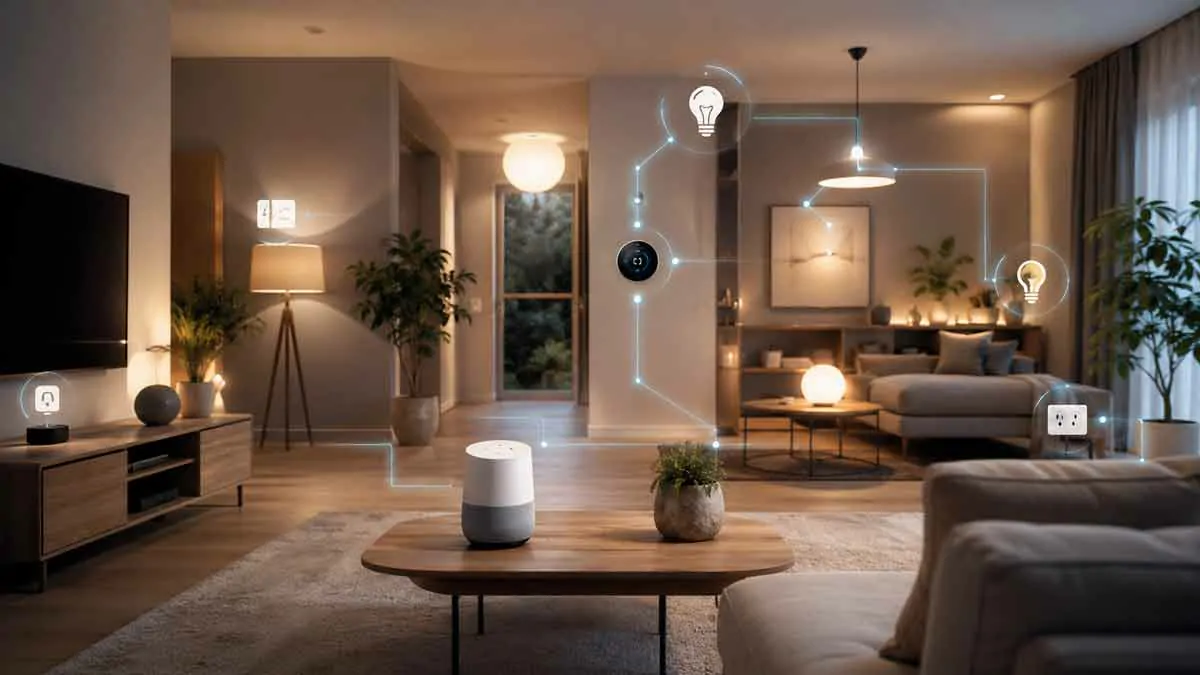
Google Home automation can turn a collection of smart devices into a coordinated system that responds to your schedule, presence, voice commands, and changes inside your home.
Instead of opening several apps or manually controlling each device, you can create automations that connect different actions together. Lights can turn on at a certain time, thermostats can adjust when you arrive home, and selected devices can respond to conditions such as whether someone is home.
The Google Home app is designed to bring compatible smart home devices into one place and lets you create household automations using starters, conditions, and actions. Compatibility varies by device and manufacturer, so choosing the right devices is an important part of building a reliable setup.
This guide explains how Google Home automation works, what you need to get started, how to create useful automations, and how to avoid common problems.
What Is Google Home Automation?
Google Home automation is a system for making compatible smart home devices perform actions automatically based on specific triggers and conditions.
For example, you could create an automation that:
- Turns on the living room lights at sunset.
- Adjusts the thermostat when you arrive home.
- Turns off selected lights when everyone leaves.
- Starts a bedtime routine at a specific time.
- Turns on a fan when a certain condition is met.
- Changes several devices at once as part of a morning routine.
The main idea is simple: instead of telling each device what to do every time, you define a situation and let the automation handle the response.
Google Home’s current automation system is structured around three main components:
Starters determine when an automation begins.
Conditions restrict when the automation is allowed to run.
Actions determine what happens after the automation starts.
An automation can contain multiple starters, conditions, and actions depending on the devices and features available in your Google Home environment.
How Google Home Automations Work
Understanding the three parts of an automation makes it much easier to design useful routines.
1. Starters
A starter is the event that begins the automation.
Depending on the supported devices and features, starters can include things such as:
- A specific time.
- Sunrise or sunset.
- A device state changing.
- Someone arriving home.
- Everyone leaving.
- A voice command.
- Another supported smart home event.
For example:
Starter: Sunset
This tells Google Home to check the rest of the automation when the sun sets.
Another example could be:
Starter: Someone arrives home
The automation can then perform one or more actions, such as turning on selected lights.
2. Conditions
Conditions are optional restrictions that determine whether an automation should actually run after its starter is triggered.
For example, you might create:
Starter: 10:00 PM
Condition: Someone is home
Action: Turn off the downstairs lights
The starter occurs every night at 10:00 PM, but the action is restricted by the condition.
Google Home can also work with multiple conditions. Depending on how the automation is configured, the conditions can operate using Any or All logic.
This gives you more control than simply creating a time-based routine.
3. Actions
Actions are the tasks Google Home performs after a starter occurs and the required conditions are satisfied.
Examples include:
- Turning lights on or off.
- Adjusting supported smart devices.
- Changing device settings.
- Running another supported smart home action.
- Controlling multiple devices as part of a single automation.
The value of automation comes from combining multiple actions.
For example:
Starter: 7:00 AM
Actions: Turn on kitchen lights, adjust the thermostat, and start another supported morning action.
Instead of manually controlling several devices, one automation handles the sequence.
What You Need for Google Home Automation
Before creating automations, you need a functioning Google Home environment.
At a minimum, you generally need:
- A Google Account.
- The Google Home app.
- A home Wi-Fi network.
- Compatible smart home devices.
- Devices properly added to your Google Home environment.
Some devices can be connected directly through Google Home, while others require you to link the manufacturer’s service first.
When buying new smart home products, look for compatibility information such as Works with Google Home or Matter support.
Device compatibility is important because a device may appear in Google Home without supporting every available control or automation feature.
Google Home and Matter
Matter has become an important part of modern smart home interoperability.
Matter is a smart home connectivity standard designed to improve compatibility between devices and smart home platforms. Google Home supports Matter-enabled devices, allowing compatible products to be added and controlled through Google Home.
Matter can also make it easier to use compatible devices across supported smart home platforms instead of locking a device into a single ecosystem.
When shopping for new devices, look for the Matter logo and check the manufacturer’s compatibility information before purchasing.
However, Matter support does not mean that every device offers exactly the same features in Google Home. Device categories, firmware, platform support, and available controls can still vary.
Google Home Automation vs. Voice Commands
Voice control and automation are related, but they are not the same thing.
A voice command requires you to initiate the action.
For example:
“Hey Google, turn on the bedroom lights.”
An automation can perform the action without you having to ask.
For example:
Starter: Sunrise
Action: Turn off the outdoor lights.
This distinction is one of the biggest advantages of home automation.
Voice control is useful when you want immediate control.
Automation is useful when you want the home to behave automatically according to predictable events or circumstances.
The two approaches work particularly well together.
How to Create a Google Home Automation
The current Google Home app provides an automation editor for creating household automations.
A typical process looks like this:
Step 1: Open the Google Home App
Open Google Home on your compatible phone or tablet.
Make sure you are using the correct home and that the devices you want to control have already been added.
Step 2: Open Automations
Go to the Automations section of the Google Home app.
This area is used to view and manage your household automations.
Step 3: Create a New Automation
Choose the option to create a new automation and give it a descriptive name.
A useful naming system makes larger smart homes much easier to manage.
Instead of names such as:
Automation 1
use names such as:
Evening Living Room Lights
or:
Away Mode Lighting
Step 4: Add a Starter
Choose what should trigger the automation.
For example:
Starter: Sunset
Step 5: Add Conditions
Conditions are optional, but they can prevent an automation from running at the wrong time.
For example:
Condition: Someone is home
Step 6: Add Actions
Choose what Google Home should do when the automation runs.
For example:
Actions:
- Turn on the living room light.
- Turn on the entryway light.
- Perform another supported action.
Step 7: Save and Test
Save the automation and monitor its behavior.
Testing is important because a technically valid automation may still behave differently than expected due to device compatibility, network conditions, or limitations of a particular device.
Best Google Home Automation Ideas
The best automations are usually the ones that solve repetitive problems.
Here are several practical ideas you can adapt to your home.
Morning Automation
Create a routine that prepares your home for the start of the day.
For example:
Starter: 7:00 AM
Actions:
- Turn on selected lights.
- Adjust a compatible thermostat.
- Perform another supported morning action.
The exact devices and actions you can use depend on your setup.
Evening Lighting Automation
Lighting is one of the easiest areas to automate.
Starter: Sunset
Actions:
- Turn on the porch light.
- Turn on the entryway light.
- Turn on selected living room lights.
This can create a consistent evening environment without requiring manual control.
Bedtime Automation
A bedtime automation can consolidate several repetitive tasks.
Starter: 10:30 PM
Actions:
- Turn off selected lights.
- Change supported devices to nighttime settings.
- Perform other compatible actions.
Rather than checking every room before bed, one automation can handle several routine tasks.
Arrival Home Automation
Presence-based automations can make your home respond when someone arrives.
For example:
Starter: Someone arrives home
Actions:
- Turn on selected lights.
- Adjust compatible devices.
- Perform other supported actions.
This can be particularly useful during darker hours.
Away Automation
Leaving the house can trigger another set of actions.
For example:
Starter: Everyone leaves
Actions:
- Turn off unnecessary lights.
- Change selected smart devices.
- Perform other supported energy-saving actions.
The goal should be convenience and energy management rather than relying on automation as the only layer of home security.
Movie Night Automation
Entertainment is another area where automation can be useful.
A dedicated movie-night setup could combine compatible devices into a single action.
For example:
Starter: Voice command or manual trigger
Actions:
- Dim selected lights.
- Turn on the entertainment system.
- Adjust other supported devices.
The exact controls depend on which products are connected to Google Home.
Vacation or Extended Absence Automation
Longer absences can benefit from carefully designed schedules.
For example, you might use scheduled lighting changes to make your home behave differently while you are away.
However, avoid treating automation alone as a security system. Smart home automations can fail because of connectivity, device, or service issues.
Using Presence in Google Home Automation
Presence can make automations more intelligent.
A simple schedule assumes that something should happen every day.
Presence-based automation can account for whether someone is actually home.
For example:
Starter: 6:00 PM
Condition: Someone is home
Action: Turn on selected lights.
This can prevent unnecessary actions when the home is empty.
Presence conditions can be especially useful for lighting, comfort, and energy-management automations.
Google Home Automation for Energy Saving
Automation can also support more efficient energy use.
The goal is not to automate every device. Instead, focus on predictable situations where a device is often left running unnecessarily.
Examples include:
- Turning off lights when everyone leaves.
- Adjusting supported climate-control devices according to a schedule.
- Turning off selected devices when they are no longer needed.
- Using presence as a condition for comfort-related automations.
For better results, combine automation with sensible device settings and energy-efficient equipment.
Automation does not automatically make a home energy efficient. It simply gives you more control over when devices operate.
Google Home Automation for Home Security
Google Home can also be used as part of a broader home security strategy.
For example, automation may help control exterior lighting or create occupancy-style lighting patterns.
However, there is an important distinction between security-related convenience and security-critical automation.
An automation should not be the only protection for a door, alarm, lock, smoke detector, or other safety-critical system.
Google specifically warns that automations are intended for convenience and that they can depend on working Wi-Fi, internet connectivity, Google services, and third-party services. For this reason, a failed automation should not be capable of creating a dangerous situation.
A better approach is to use automation as one layer within a broader security setup.
Google Home Automation with Third-Party Devices
Google Home is not limited to Google-branded products.
Many third-party smart home products can be connected to Google Home, either through direct integration, a manufacturer’s service, or Matter.
This makes it possible to combine products from different manufacturers in one smart home environment.
However, integration does not always mean identical functionality.
For example, one device may support on/off control while another may expose additional controls such as brightness, temperature, or other device-specific settings.
Before buying a product specifically for automation, check the manufacturer’s compatibility documentation and the Google Home compatibility information.
Google Home Automation and Smart Home Hubs
Your smart home may contain many different device types:
- Smart lights.
- Smart plugs.
- Thermostats.
- Sensors.
- Smart speakers.
- Displays.
- Security devices.
- Appliances.
- Entertainment products.
The more devices you add, the more important organization becomes.
Use meaningful room names, consistent device names, and logical automation names.
For example, avoid naming devices:
Light 1
Light 2
Plug 3
Instead, use names such as:
Living Room Floor Lamp
Kitchen Ceiling Light
Bedroom Fan Plug
Clear naming makes both voice control and automation management easier.
Advanced Google Home Automation
For users who want more control, Google Home also provides an advanced script editor for supported household automations.
The script editor allows more advanced automation logic using starters, conditions, actions, and additional configuration.
It is particularly useful for users who have outgrown basic routines and want more precise control over how their smart home behaves.
The script editor uses a YAML-based format, so it is better suited to users who are comfortable working with structured configuration.
Because advanced automation features can change over time and availability can vary by device, platform, and preview status, beginners should start with the standard Google Home automation editor before moving into scripting.
Common Google Home Automation Problems
Even well-designed automations can fail occasionally.
Here are some of the most common issues.
A Device Does Not Respond
Check that:
- The device is powered on.
- It is connected correctly.
- It appears in Google Home.
- The manufacturer’s service is still linked if required.
- The device supports the action you are trying to perform.
The Automation Does Not Run
Review the starter and conditions.
A condition may be preventing the action from running.
For example, an automation with:
Starter: 8:00 PM
Condition: Someone is home
will not produce the expected result when the home is empty.
Also check your Wi-Fi connection and the availability of the services involved.
A Device Supports Google Home but Has Limited Controls
Compatibility can be partial.
A device may be visible in Google Home but not expose every function available in the manufacturer’s own app.
This is one reason to check exactly what a product supports before building an automation around it.
Automation Works Sometimes but Not Always
Intermittent behavior can come from several sources:
- Wi-Fi problems.
- Device connectivity problems.
- Internet outages.
- Manufacturer service issues.
- Temporary Google service problems.
- Unsupported or changed device functionality.
For critical household functions, always maintain a manual fallback.
How to Make Google Home Automations More Reliable
Good automation design is less about creating the largest number of routines and more about creating routines that are predictable and easy to troubleshoot.
Start with simple automations.
For example:
Sunset → Turn on porch light
is easier to troubleshoot than an automation containing numerous dependencies.
Use conditions only when they provide a clear benefit.
Name automations clearly.
Avoid creating several automations that control the same device in conflicting ways.
Test new automations individually before combining them with other routines.
Finally, maintain manual control of important devices.
Automation should make your home easier to manage, not make you dependent on a single chain of connected services.
Google Home Automation Best Practices
A well-designed smart home usually follows a few simple principles.
Keep Automations Purposeful
Create an automation because it solves a recurring problem.
Avoid automating tasks simply because they can be automated.
Use Clear Names
Use names based on the room, device, or purpose.
Good naming becomes increasingly important as the number of devices grows.
Start Small
Begin with a few high-value automations such as lighting, bedtime, arrival, and energy-saving routines.
Once those are reliable, expand gradually.
Avoid Conflicting Automations
Two automations controlling the same device can create unexpected results.
For example, one routine might turn a light on while another turns it off shortly afterward.
Review your automations periodically and remove routines you no longer need.
Keep Manual Control Available
A smart home should still be usable when automation fails.
Maintain physical controls and alternative ways of operating important devices.
Check Compatibility Before Buying
Do not assume that every smart device will support every Google Home feature.
Check whether the device supports Google Home, Matter, and the specific controls required for your intended automation.
Is Google Home Automation Worth It?
For many households, Google Home automation can provide a meaningful improvement in convenience.
The biggest benefit is not simply being able to control devices from your phone or through voice commands. The real advantage is reducing repetitive interaction.
A good automation can eliminate dozens of small manual tasks over time.
The system becomes particularly useful when you combine compatible devices with clear schedules, presence information, and sensible conditions.
At the same time, automation introduces additional dependencies. Wi-Fi, cloud services, device integrations, firmware, and platform compatibility can all affect reliability.
That means the best Google Home setup is not necessarily the most complicated one.
It is the one that performs a small number of useful tasks consistently.
Final Thoughts
Google Home automation provides a practical way to turn individual smart devices into a coordinated home system.
The basic concept is straightforward: starters determine when an automation begins, conditions determine when it is allowed to run, and actions determine what happens next.
From simple lighting schedules to more advanced presence-based routines, the platform can automate many repetitive household tasks.
Matter support also makes compatibility an increasingly important part of building a modern smart home, while third-party integrations allow you to combine devices from different manufacturers.
For beginners, the best strategy is to start with a few practical automations, such as evening lighting, bedtime routines, arrival actions, or energy-saving schedules. Once those are working reliably, you can gradually add more advanced logic.
A smart home does not need to be complicated to be useful. The strongest Google Home automation setup is one that saves time, reduces repetitive tasks, and remains easy to understand and control manually.